 admin
adminLiDAR / 3D Point Cloud Annotation Workflow in JTheta.ai Annotation
Introduction
LiDAR sensors capture the physical environment as dense 3D point cloud data, enabling machines to understand depth, object geometry, and spatial relationships. These datasets are critical for building perception systems used in autonomous driving, robotics, ADAS, and other 3D AI applications. However, raw LiDAR scans cannot be directly used to train machine learning models. They must first be structured through a clear annotation pipeline.
This article explains the LiDAR / 3D Point Cloud annotation workflow in JTheta Annotate, covering how teams create projects, upload datasets, annotate objects, review results, and export model-ready datasets.
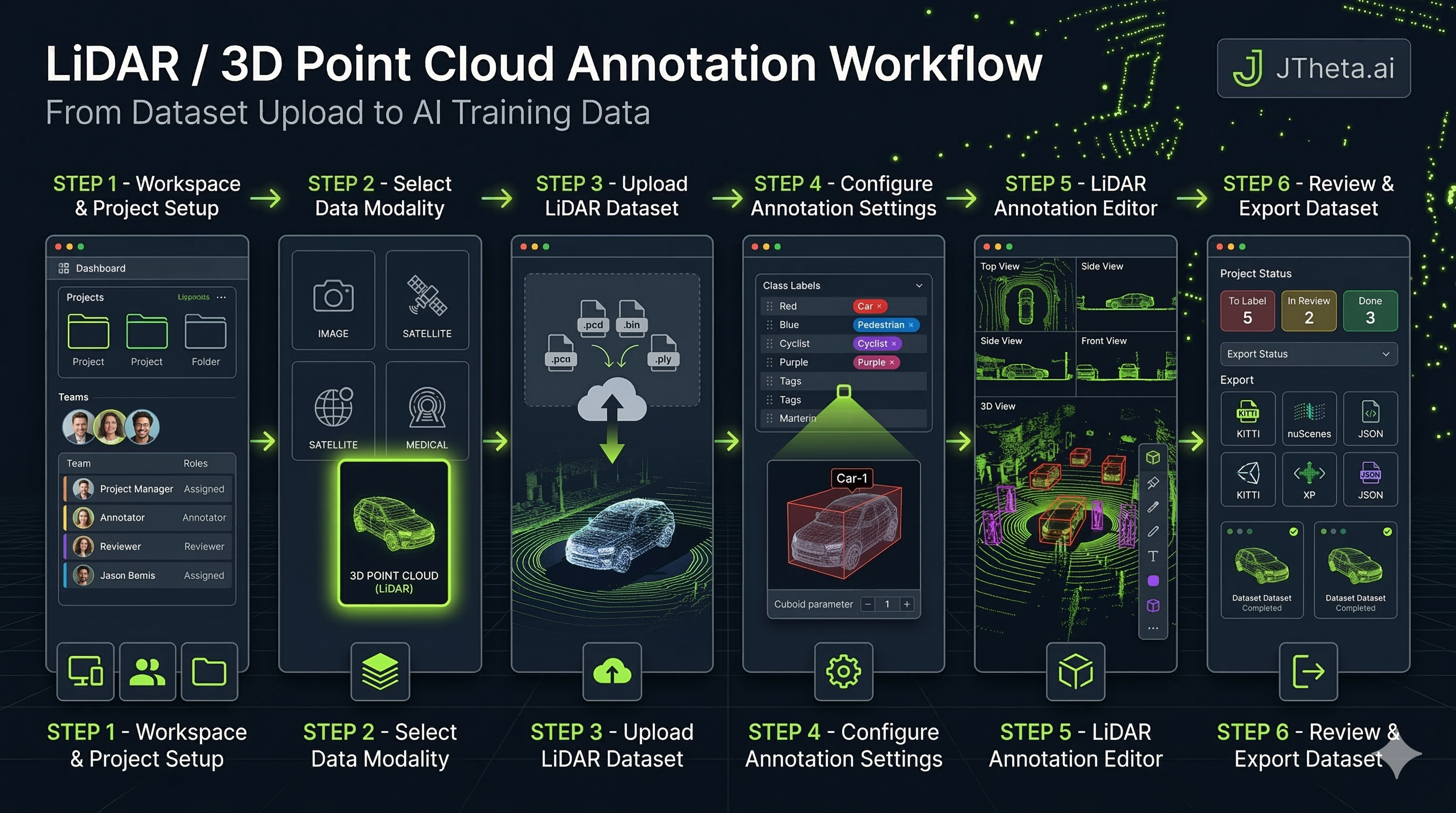
1. Workspace and Project Setup
The LiDAR annotation process begins by selecting or creating a workspace in JTheta.ai. A workspace acts as a collaborative environment where datasets are stored, projects are managed, and user permissions are controlled. Within a workspace, teams can create new annotation projects and assign roles such as Admin, Annotator, and Reviewer.
Once inside a workspace, users start a new project through the Create Project wizard. This setup includes entering project metadata, uploading datasets, configuring annotation settings, assigning team members, and reviewing the configuration before launching the annotation environment. This structured initialization ensures the LiDAR project is organized and ready before labeling begins.
2. Selecting the LiDAR Data Modality
During project creation, the system asks users to select the data modality. JTheta supports several modalities such as image, satellite imagery, medical imagery, and 3D Point Cloud (LiDAR). Selecting the LiDAR option activates specialized tools designed for spatial annotation workflows.
These include 3D bounding boxes, multi-view point cloud visualization panels, camera-LiDAR fusion previews, and object synchronization across frames. Once this modality is selected, the platform automatically prepares the LiDAR annotation interface so that annotators can work with spatial datasets effectively.
3. Uploading and Preparing LiDAR Datasets
After configuring the project details, the next step is uploading the LiDAR dataset. Teams can upload point cloud files directly using supported formats such as .pcd, .bin, or .ply, or import datasets from external sources like AWS S3 or Google Drive. Users can also link previously uploaded datasets stored within the workspace.
When files are uploaded, JTheta automatically processes the point cloud metadata, generates dataset previews, and synchronizes camera–LiDAR pairs if the dataset includes multi-sensor information. Additional dataset information such as dataset name and optional licensing details can also be defined to keep datasets organized within large projects.
4. Configuring Annotation Settings
Before annotation begins, the project must define its labeling structure. Teams create class labels representing the objects that annotators will identify in the LiDAR scene. Common classes include Car, Pedestrian, Truck, Cyclist, and Traffic Cone. Each class can include a color code for visualization and an optional supercategory for grouping related objects.
The primary annotation method used in LiDAR datasets is 3D bounding boxes, which allow annotators to capture the spatial extent of objects in three dimensions. Annotators can adjust box dimensions, rotate cuboids, and align objects with camera views when sensor fusion is available. Additional attributes such as occlusion level, motion state, or truncation can be added to provide more context about each object.
JTheta also provides an AI-assisted annotation feature called Automatic Annotation. When enabled, the system generates predicted bounding boxes that annotators can refine, significantly accelerating the labeling process.
5. Annotating LiDAR Scenes in the Editor
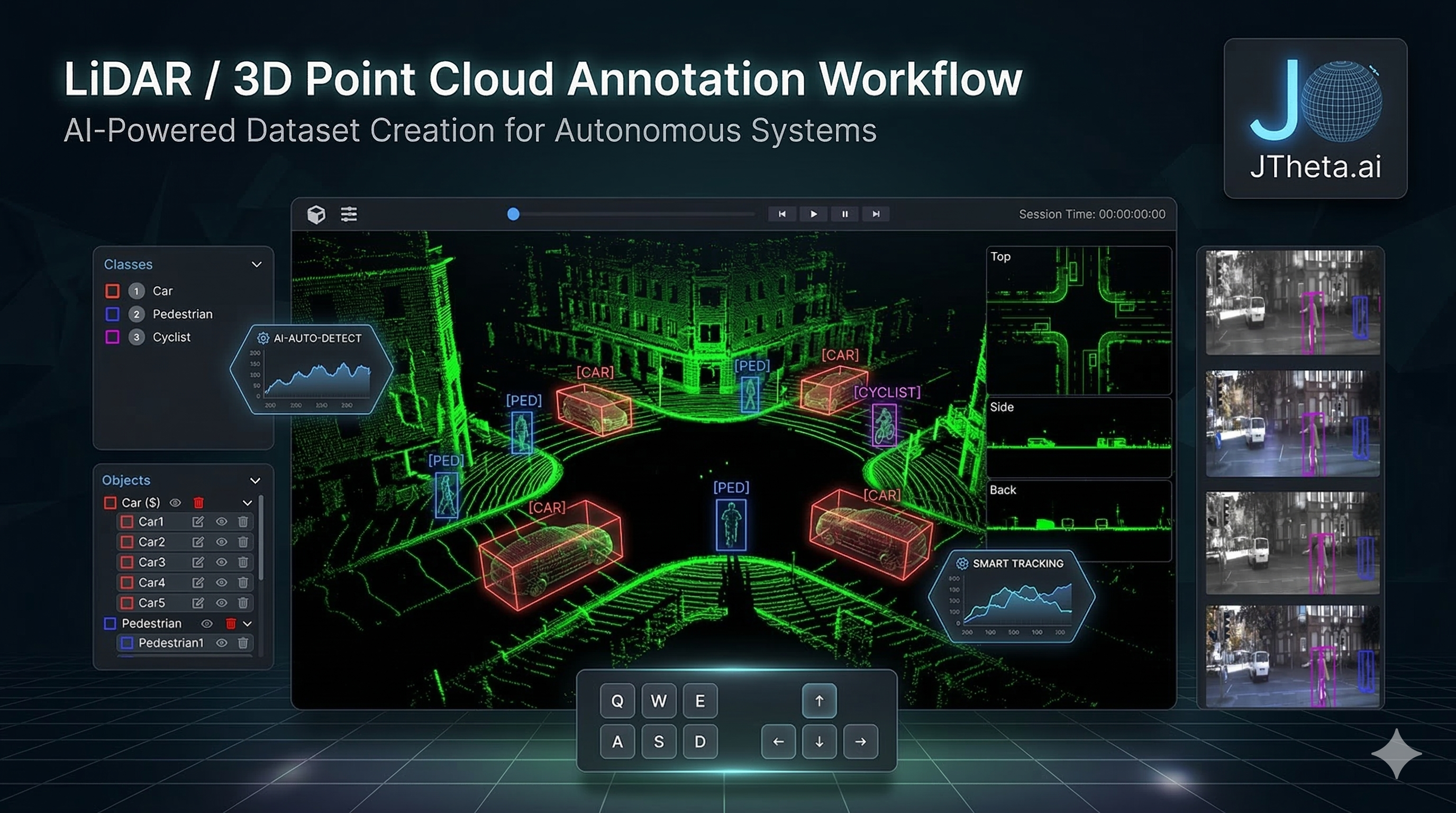
Once the project configuration is confirmed, annotators can launch the LiDAR editor interface by clicking Annotate. The editor provides multiple visualization perspectives to understand the 3D environment, including the main point cloud view, side and back views, and synchronized camera panels. These perspectives help annotators accurately place and scale bounding boxes around objects.
The interface also includes a class and object panel, where annotators can view object lists, assign labels, and track annotation status. Using the available tools, annotators can create and adjust 3D bounding boxes, rotate cuboids along different axes, duplicate objects, or remove incorrect annotations.
Each 3D bounding box is defined by key spatial properties such as dimensions (length, width, height), rotation (yaw, pitch, roll), and position (X, Y, Z coordinates). These parameters ensure the annotated object accurately reflects its real-world size and orientation in the LiDAR scene. AI Assist tools can further accelerate the process by detecting objects automatically, allowing annotators to focus on verification and refinement.
6. Review, Monitoring, and Dataset Export
After annotation is completed, items are submitted for review. If reviewers are assigned to the project, the annotations move into an In Review state where quality checks are performed before final approval. Otherwise, annotations are marked as complete immediately after submission.
The Project Dashboard provides an overview of dataset progress, displaying status categories such as To Label, In Review, In Rework, Done, and Skipped. Managers can also monitor analytics including annotator productivity, object distribution, labeling time, and overall dataset completion.
Once the dataset passes quality checks, it can be exported for machine learning pipelines. JTheta supports common LiDAR dataset formats including KITTI, nuScenes, Supervisely, Custom JSON, and Custom CSV. The exported files contain 3D bounding box coordinates, class labels, frame metadata, and sensor alignment information, making them ready for training perception models.
Conclusion
LiDAR annotation is a critical step in building reliable perception systems for autonomous technologies. By following a structured workflow—starting from workspace setup and dataset upload to annotation, review, and export—teams can efficiently convert raw point cloud data into high-quality training datasets.
JTheta Annotate simplifies this process with AI-assisted tools, multi-view LiDAR visualization, and collaborative review workflows, enabling organizations to produce accurate, scalable datasets for autonomous driving, robotics, and advanced 3D AI applications.